

How to Put Daily Affirmations on iPhone for Positive Mindset
How To Put Daily Affirmations On Iphone
Looking for ways to make your day brighter and your mindset stronger? Many people are discovering the power of daily affirmations—simple, positive statements that help build confidence and reduce stress. But remembering to use affirmations can be hard. One smart solution is to put these affirmations right on your iPhone, so you see them every day. Whether you want to boost motivation, help with anxiety, or develop a positive routine, your iPhone can make it easy.
This guide will show you how to set up daily affirmations on your iPhone in several creative ways. You’ll learn to use built-in features like widgets, reminders, and wallpapers, as well as third-party apps. You’ll also find tips for making affirmations work for you—even if you’re a beginner.
Let’s turn your iPhone into a daily source of encouragement and focus.
Why Use Daily Affirmations On Your Iphone?
Daily affirmations are short, positive phrases you repeat to yourself. Examples include “I am strong,” “I can handle challenges,” or “I am worthy of success.” Science shows that affirmations can help change negative thoughts, reduce anxiety, and even improve performance.
But why put them on your iPhone? Here’s why it works:
- Visibility: You check your phone many times a day. Seeing affirmations reminds you to stay positive.
- Convenience: Your iPhone is always with you, so your affirmations are too.
- Customization: You can choose how and when you see your affirmations—on your lock screen, as notifications, or in widgets.
People often struggle to remember their affirmations, especially when life gets busy. By putting them on your iPhone, you make them part of your daily routine.
Understanding Iphone Tools For Affirmations
Your iPhone has many features that can help with affirmations. Here’s a look at the most useful ones:
- Widgets: Small boxes you add to your home screen to show information—perfect for displaying affirmations.
- Reminders App: Sends you scheduled alerts, so you never forget to say your affirmations.
- Notes App: Great for keeping a list of affirmations in one place.
- Wallpaper: Shows your chosen image or phrase every time you unlock your phone.
- Shortcuts App: Lets you automate tasks, like sending yourself a random affirmation at set times.
- Third-Party Apps: Special apps designed for daily affirmations, often with extra features.
Knowing these tools helps you choose the best way to add affirmations to your daily life.
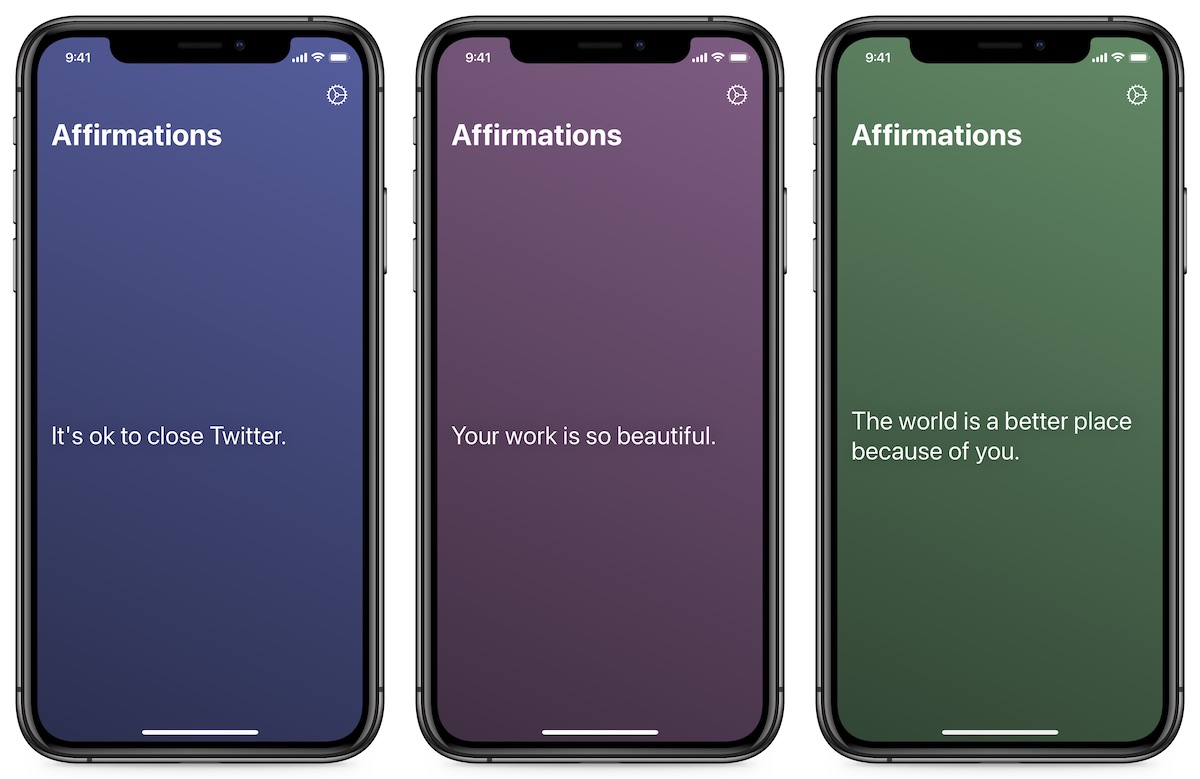
Credit: thesweetsetup.com
Setting Up Affirmations With Widgets
Widgets are one of the most powerful and visible ways to see your affirmations every day. Here’s how to use them:
Using The Notes Widget
- Create a Note for Affirmations:
- Open the Notes app.
- Tap the compose button.
- Title the note “Daily Affirmations.”
- List your favorite affirmations.
- Add the Notes Widget:
- Press and hold any empty space on your home screen.
- Tap the “+” sign in the top left.
- Search for “Notes.”
- Choose the widget size you like (small, medium, or large).
- Select the “Daily Affirmations” note to display.
Tip: Edit your note anytime to update the affirmations on your home screen.
Using Third-party Affirmation Widget Apps
Some apps are made just for showing affirmations as widgets. Popular options include:
- I Am – Daily Affirmations
- ThinkUp
- Motivation – Daily Quotes
How to use these:
- Download your chosen app from the App Store.
- Add your favorite affirmations (or use the app’s pre-written ones).
- Follow the app’s instructions to add its widget to your home screen.
These apps often let you change fonts, colors, and backgrounds for a more personal look.
Widget Comparison
Here’s a quick comparison of common widget options:
| Method | Customizable | Needs Extra App? | Updates Automatically? |
|---|---|---|---|
| Notes Widget | Limited (text only) | No | Yes (when you edit the note) |
| I Am Widget | High (text, colors, backgrounds) | Yes | Yes (daily affirmation updates) |
| Motivation Widget | Medium (quotes, colors) | Yes | Yes |
Insight: Many beginners don’t realize that third-party apps let you schedule affirmation changes, so you see a new phrase each day without manual updates.
Using Iphone Reminders For Affirmations
If you want your iPhone to nudge you to say your affirmations, the Reminders app is a simple choice.
How To Set Up Affirmation Reminders
- Open the Reminders app.
- Tap “New Reminder.”
- Type in your affirmation, such as “I am calm and focused.”
- Tap the calendar icon to set a time.
- Choose how often you want to repeat it (every day, weekdays, custom).
- Save.
Now, you’ll get a notification at your chosen time.
Advanced Tips
- Multiple Reminders: Set different affirmations for different times (morning, midday, evening).
- Recurring Reminders: Use the repeat option for daily, weekly, or even hourly affirmations.
- Location-Based Reminders: Have affirmations pop up when you arrive at work or home.
Common Mistake: Some users put all affirmations in one reminder, which can be overwhelming. It’s better to spread them out for a gentle, positive effect.
Creating Affirmation Wallpapers
Your iPhone wallpaper is a powerful place for affirmations—it greets you every time you unlock your phone.
How To Make An Affirmation Wallpaper
Option 1: Use a Photo Editing App
- Choose a background image you like (nature, solid color, minimal design).
- Open a photo editing app (like Canva, Over, or even the built-in Markup tool).
- Add your affirmation text. Choose a readable font and color.
- Save the image to your Photos.
Option 2: Use Wallpaper Apps
Some apps (like Motivation or Affirmation Wallpaper) have pre-made designs you can customize with your own affirmations.
Setting The Affirmation Wallpaper
- Open the Photos app and select your image.
- Tap the share button.
- Choose “Use as Wallpaper.”
- Adjust and set for the lock screen, home screen, or both.
Tip: Try changing your wallpaper every week for fresh inspiration.
Wallpaper Types Comparison
| Wallpaper Type | Ease of Setup | Personalization | Visibility |
|---|---|---|---|
| Custom (using Canva, etc.) | Medium | High | Very High |
| Pre-made App Wallpapers | Easy | Medium | High |
| Text-only (using Markup) | Easy | Low | Medium |
Non-obvious tip: Use a simple background and high-contrast text. Many people choose busy images, which makes the affirmation hard to read.
Automating Affirmations With Shortcuts
The Shortcuts app allows you to automate almost anything on your iPhone—including sending yourself random affirmations at set times.
Setting Up A Simple Affirmation Shortcut
- Open the Shortcuts app.
- Tap “+” to create a new shortcut.
- Add an action: “Show Notification.”
- Enter your affirmation as the notification text.
- Name your shortcut (“Morning Affirmation”).
- Tap “Add to Home Screen” if you want a quick-launch button.
Scheduling Affirmation Notifications
To have affirmations sent automatically:
- In Shortcuts, go to the “Automation” tab.
- Tap “Create Personal Automation.”
- Choose “Time of Day.”
- Set your desired time and frequency.
- Add the “Show Notification” action with your affirmation.
- Save.
Now, your iPhone will send you an affirmation notification at the time you set.
Advanced: Random Affirmations
If you want your iPhone to pick a random affirmation each day:
- In your shortcut, use the “Get Item from List” action.
- Enter a list of affirmations.
- Use “Random Item” to select one.
- Show that item as a notification.
This approach takes more setup but brings variety and surprise to your daily routine.
Insight: Most people don’t realize you can also trigger affirmations by events—like plugging in headphones or arriving at a location. Explore trigger options for creative ideas.
Best Third-party Apps For Affirmations
While your iPhone’s built-in tools are powerful, many users prefer specialized affirmation apps. These apps often have larger libraries, reminders, and fun extras like themes and tracking.
Top Affirmation Apps
- I Am – Daily Affirmations
- Offers a huge range of affirmations for different topics (confidence, anxiety, work).
- Clean interface and easy-to-use widgets.
- Customizable reminders.
- ThinkUp
- Lets you record your own voice saying affirmations.
- Tracks your progress.
- Personalized plans.
- Motivation – Daily Quotes
- Includes both affirmations and motivational quotes.
- Widget and lock screen support.
- Large collection of topics.
- Unique Daily Affirmations
- Simple, minimal design.
- Shareable affirmations.
- No account needed.
- Gratitude Journal, Affirmations
- Combines journaling with affirmations.
- Helps build a daily gratitude habit.
App Features Comparison
| App Name | Widget Support | Custom Affirmations | Voice Recording | Free Version? |
|---|---|---|---|---|
| I Am | Yes | Yes | No | Yes (with ads) |
| ThinkUp | No | Yes | Yes | Yes (limited) |
| Motivation | Yes | Yes | No | Yes (limited) |
| Unique Daily Affirmations | No | No | No | Yes |
| Gratitude Journal | No | Yes | No | Yes (with ads) |
Tip: Try a few apps to see which style and features fit your personality. Many offer free trials or basic versions.
Making Affirmations Work: Practical Strategies
Putting affirmations on your iPhone is just the first step. To get real results, use these practical tips:
Be Consistent
- Set reminders at times when you need encouragement (morning, before meetings, bedtime).
- Make affirmations part of a routine—like after brushing your teeth or before checking social media.
Personalize Your Affirmations
- Use words that feel natural to you.
- Focus on areas you want to improve—confidence, calm, gratitude, success.
- Change your affirmations as your goals or moods shift.
Say Affirmations Out Loud
- When you see an affirmation, say it quietly or in your mind.
- Speaking out loud helps your brain believe the message.
Use Visuals
- Add images, colors, or symbols to your widgets and wallpapers for extra impact.
Track Your Progress
- Some apps let you log how often you repeat affirmations.
- Notice how your mood or thoughts change over time.
Beginner Insight: Many people set up affirmations but forget to engage with them. Take a moment to pause and focus, not just swipe away notifications.
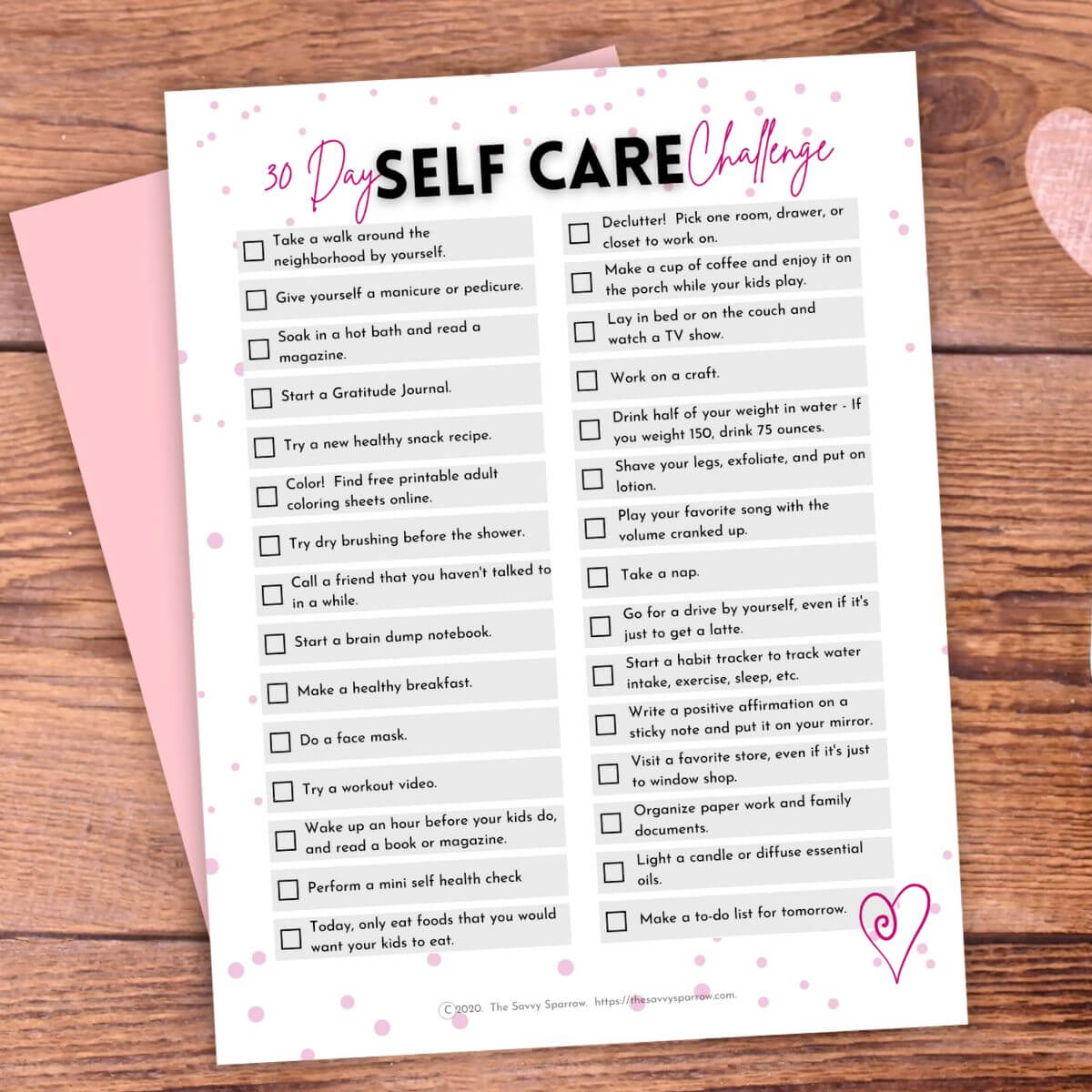
Credit: thesavvysparrow.com
Overcoming Common Problems
Even with the best setup, you might hit a few obstacles. Here’s how to handle them:
Notifications Become “invisible”
When you see the same reminder every day, your brain can start to ignore it.
- Solution: Rotate your affirmations often. Use randomization features in apps or shortcuts.
Affirmations Feel Fake
Some people feel awkward or insincere repeating affirmations, especially if they don’t believe them at first.
- Solution: Start with statements you can accept, like “I am learning to be confident” or “I am open to new possibilities.” Gradually shift to stronger phrases.
Too Many Notifications
If you set up too many reminders, they can feel annoying.
- Solution: Limit yourself to 1-3 affirmations per day. Quality is better than quantity.
Privacy Concerns
You may not want others to see your affirmations on your lock screen.
- Solution: Put affirmations in widgets or reminders that only you check. Or use codes or symbols that only you understand.
Creative Ways To Use Affirmations On Iphone
Looking for inspiration? Try these creative ideas:
- Lock Screen Carousel: Use apps that let you set multiple lock screen wallpapers and switch them daily.
- Voice Memos: Record your affirmations and play them as you get ready in the morning.
- Siri Shortcuts: Set up a Siri command to read your daily affirmation aloud.
- Shared Affirmations: Make a shared note with a friend or partner, and add new affirmations for each other.
- Photo Albums: Create an album of affirmation images and browse them during breaks.
Non-obvious insight: Many people don’t realize that affirmations can be part of group motivation—sharing them with friends or family can boost accountability and fun.
Measuring The Impact Of Daily Affirmations
You might wonder if affirmations are working for you. Here’s how to measure their effect:
- Mood Tracking: Use your iPhone’s Notes or a mood tracker app to log your feelings before and after saying affirmations.
- Performance Journals: Track your work or study results over weeks. Are you more focused or less anxious?
- Feedback from Others: Sometimes, people around you notice changes before you do.
Studies have shown that regular use of affirmations can reduce stress, improve self-image, and help people reach their goals. Consistency and belief are key.
For more background on the science behind affirmations, see this Wikipedia article on self-affirmation.
Frequently Asked Questions
How Many Affirmations Should I Use Each Day?
Most people find that 1 to 3 affirmations per day is enough. Too many can feel overwhelming and lose their impact. Choose a few that match your current goals or mood.
What’s The Best Time To See My Affirmations?
Many users prefer morning (to start the day with a positive mindset) or evening (to reflect before sleep). You can also set affirmations before stressful events, like meetings or exams.
Are Affirmation Apps Safe To Use?
Yes, most affirmation apps are safe. Choose apps with good reviews and clear privacy policies. Avoid apps that require too much personal information or payment upfront.
Can I Use My Own Language For Affirmations?
Absolutely. Affirmations are most powerful when they feel personal and comfortable. Use your native language, or even a mix of languages, if that helps you connect with the message.
Do Affirmations Really Work?
Research suggests that affirmations can help change thinking patterns, reduce stress, and build confidence. The key is regular use and choosing affirmations that feel believable to you.
Putting daily affirmations on your iPhone is a simple but powerful way to improve your mindset and well-being. By using widgets, reminders, wallpapers, and creative apps, you can make affirmations a natural part of your routine. With a little practice, your iPhone will become more than a tool—it will be a daily source of encouragement, focus, and growth.
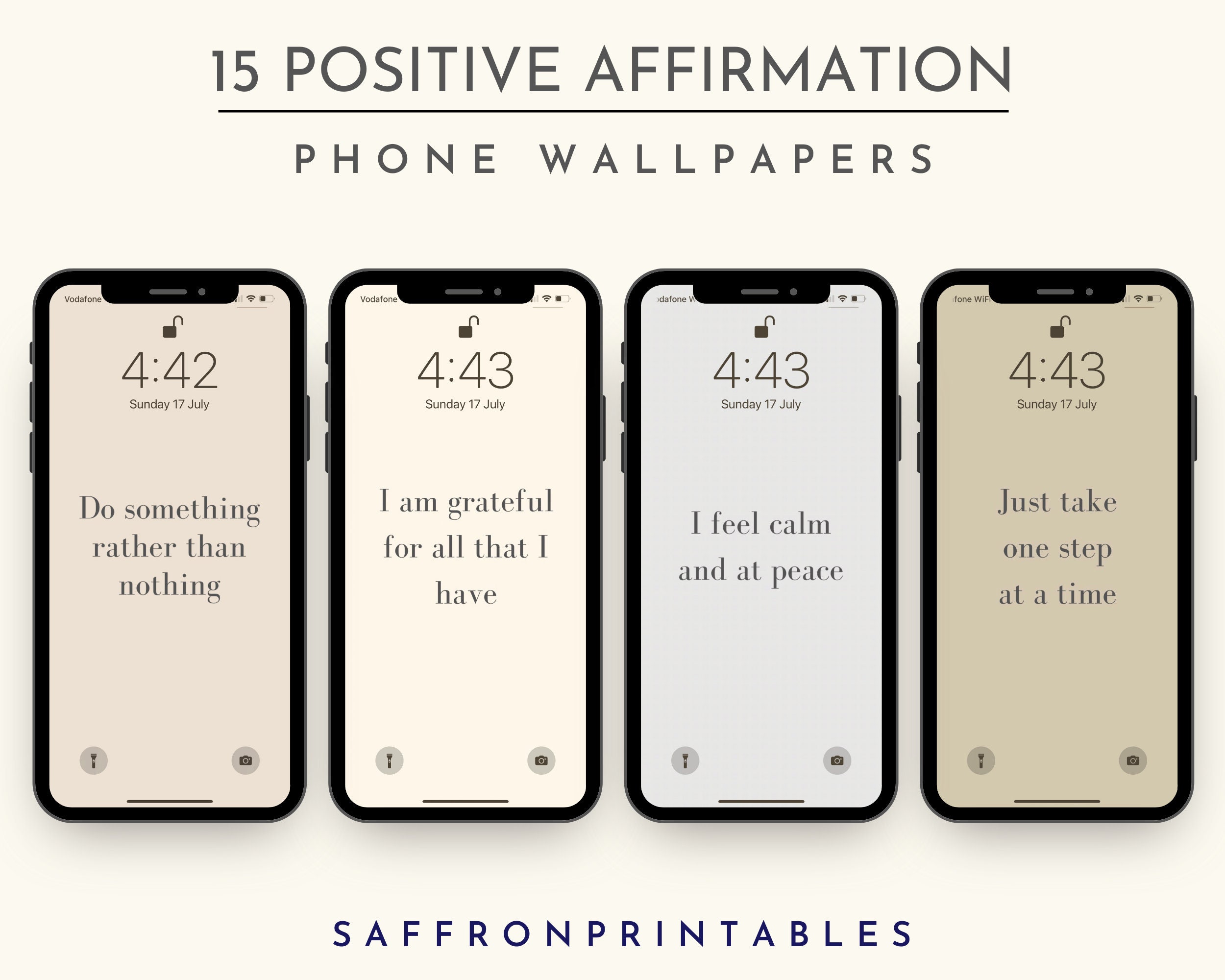
Credit: www.etsy.com
